







Introduction
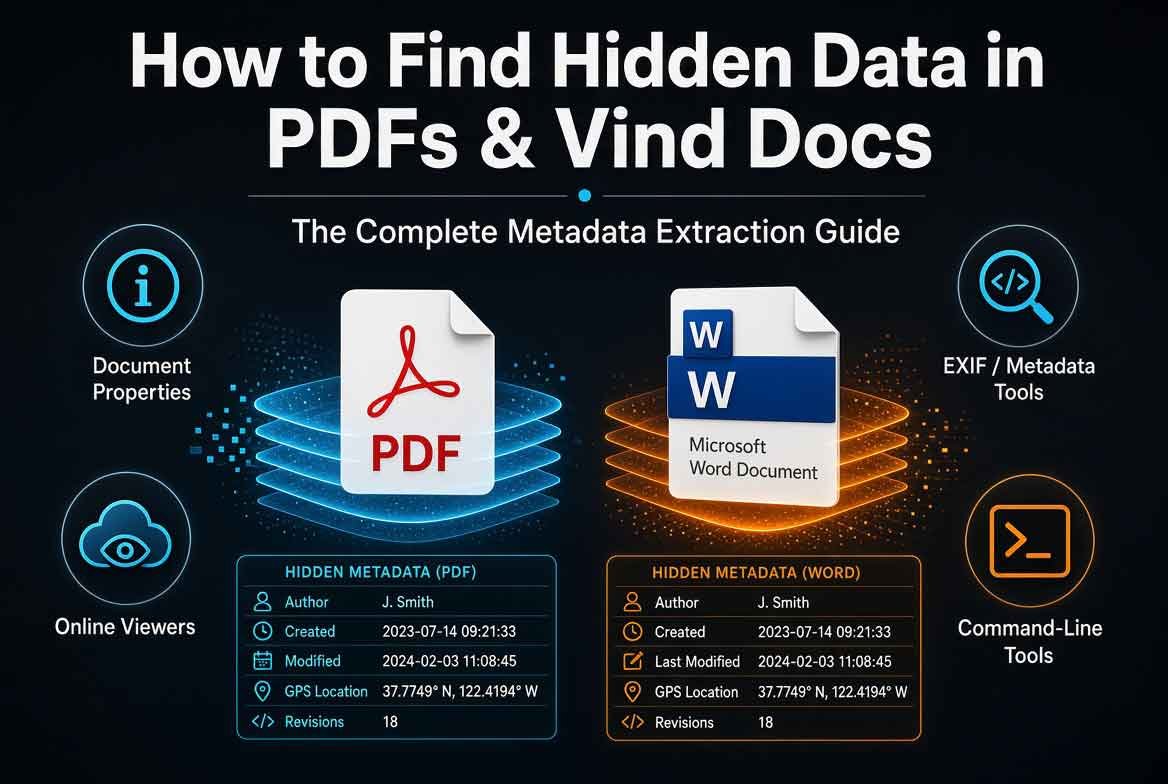
Documents contain more than what meets the eye. Every PDF and Word file carries hidden data known as metadata. This data includes the author’s name, creation date, editing history, and sometimes even deleted text or comments. Learning to find hidden data in PDFs and Word docs is a valuable OSINT skill that reveals information the document creator never intended to share.
This guide covers the most effective methods for extracting hidden data from documents. You will learn what document metadata is, how to perform a quick scan using Metadata2go, how to check metadata on your desktop without uploading files, how to use the professional tool ExifTool, and how to follow the metadata protocol for thorough investigations. By the end, you will be able to uncover hidden information in any document.
Table of Contents
- Understanding Document Metadata
- The Quick Scan (Metadata2go)
- The Desktop Check (No Upload Required)
- The Pro Tool (ExifTool)
- The Metadata Protocol
- Common Mistakes When Extracting Hidden Data
- Pro Tips for Document OSINT
- Expert Insights on Document Privacy
- Real World Applications
- Actionable Takeaways
- Summary
- Conclusion
- FAQ
Understanding Document Metadata
What is Document Metadata?
Document metadata is data about the document itself. It includes information such as the author’s name, the date the document was created, the date it was last modified, the software used to create it, and sometimes the computer’s name or username. This information is embedded in the file and is not visible when you view the document normally.
Why Hidden Data Matters
Hidden data can reveal sensitive information. A document shared by a company might contain the author’s full name, which can be used to identify employees. A PDF might contain hidden text that was deleted but not fully removed. Comments and tracked changes in Word documents can reveal the editing process and the identities of reviewers.
Types of Hidden Data
There are several types of hidden data in documents. Metadata includes author, date, and software information. Hidden text includes text that has been deleted or formatted as hidden. Comments and annotations are not always visible. Embedded objects like images or fonts may contain their own metadata.
The Quick Scan (Metadata2go)
What is Metadata2go?
Metadata2go is a free web based tool that extracts metadata from documents. You upload a file, and the tool displays all the metadata it can find. It is the quickest way to get an overview of what hidden data a document contains.
How to Use Metadata2go
Step 1: Go to the Metadata2go website.
Step 2: Upload the PDF or Word document you want to analyze.
Step 3: Wait for the scan to complete. The tool will display a list of metadata fields and their values.
Step 4: Review the results. Look for author names, creation dates, software versions, and any other information that seems relevant.
Step 5: Take a screenshot or copy the results for your records.
What Metadata2go Reveals
Metadata2go shows standard metadata fields like author, title, subject, keywords, creation date, modification date, and producer software. For PDFs, it may also show PDF version and encryption details. For Word documents, it may show template names and revision numbers.
Limitations of Metadata2go
Metadata2go requires you to upload the file to a third party server. This may not be appropriate for sensitive documents. It also does not extract hidden text or comments. It focuses on metadata only.
The Desktop Check (No Upload Required)
Why a Desktop Check Matters
Some documents are too sensitive to upload to an online tool. A desktop check allows you to view metadata without sending the file anywhere. This method is more secure and works offline.
How to Check Metadata on Windows
Step 1: Right click the file in File Explorer.
Step 2: Select Properties from the context menu.
Step 3: Go to the Details tab.
Step 4: Review the metadata fields. You will see author, title, tags, comments, creation date, modification date, and more.
Step 5: For Word documents, you can also open the file and go to File > Info to see additional metadata and document properties.
How to Check Metadata on Mac
Step 1: Select the file in Finder.
Step 2: Press Command+I to open Get Info.
Step 3: Look at the More Info section for basic metadata.
Step 4: For more detailed metadata, use the Preview app. Open the file in Preview and go to Tools > Show Inspector. The Inspector shows PDF metadata including author, title, and keywords.
What the Desktop Check Reveals
The desktop check reveals the same standard metadata as online tools but without uploading the file. It is ideal for quick checks on sensitive documents.
Limitations of the Desktop Check
The desktop check does not show all metadata. Some fields are hidden or require specialized tools to view. It also does not extract hidden text or comments.
The Pro Tool (ExifTool)
What is ExifTool?
ExifTool is a powerful command line tool for reading, writing, and editing metadata in a wide range of file formats. It is the tool of choice for professional investigators and forensic analysts. ExifTool can extract metadata that other tools miss.
How to Install ExifTool
ExifTool is available for Windows, Mac, and Linux. Download it from the official website and install it according to your operating system. On Windows, you may need to add it to your PATH variable.
How to Use ExifTool
Step 1: Open a command prompt or terminal.
Step 2: Navigate to the directory containing the document.
Step 3: Run the command: exiftool filename.pdf or exiftool filename.docx.
Step 4: ExifTool will display all metadata it can find. The output is detailed and includes fields that other tools do not show.
Step 5: For even more detail, use the -a option to show all metadata, including duplicate fields.
What ExifTool Reveals
ExifTool reveals the full range of metadata including author, creator, producer, creation date, modification date, software, and more. For PDFs, it can show PDF specific fields like page count, PDF version, and encryption status. For Word documents, it can show template names, revision numbers, and editing time.
Why ExifTool is the Pro Choice
ExifTool is free, open source, and regularly updated. It supports hundreds of file formats and can extract metadata that other tools miss. It is the standard tool for forensic document analysis.
The Metadata Protocol
What is the Metadata Protocol?
The metadata protocol is a systematic approach to extracting and analyzing hidden data from documents. It ensures you do not miss important information and that your findings are accurate and documented.
Step 1: Initial Assessment
Before extracting metadata, assess the document’s sensitivity. If the document contains confidential information, use the desktop check or ExifTool instead of uploading to an online service.
Step 2: Quick Scan
Use Metadata2go for a quick overview. This step reveals the most common metadata fields and helps you decide if deeper analysis is needed.
Step 3: Desktop Check
Perform a desktop check to verify the online results and to see metadata without uploading the file. This step is especially important for sensitive documents.
Step 4: Deep Analysis with ExifTool
Use ExifTool for a thorough analysis. This step reveals metadata that other tools miss. Run the command with the -a option for maximum detail.
Step 5: Document Your Findings
Take screenshots or copy the output from each tool. Note the file name, date of analysis, and any interesting findings. This documentation is essential for reporting or further investigation.
Common Mistakes When Extracting Hidden Data
One common mistake is relying on a single tool. Different tools reveal different metadata. Always use at least two methods to ensure you have complete information.
Another mistake is ignoring the document’s content. Metadata is valuable, but hidden text and comments can reveal even more. Always check for hidden content in Word documents by enabling the Show/Hide feature and reviewing comments.
Beginners often forget to check for embedded objects. Images and fonts in a document may contain their own metadata. Use ExifTool on embedded objects to extract additional information.
Pro Tips for Document OSINT
Always check the document properties in Word. Go to File > Info > Properties > Advanced Properties to see the full set of metadata fields.
For PDFs, use the document properties dialog in Adobe Acrobat or a PDF reader. This shows basic metadata but may not show all fields.
Use ExifTool with the -csv option to output metadata in a spreadsheet friendly format. This makes it easier to compare multiple documents.
If you find interesting metadata, cross reference it with other OSINT sources. An author name can be searched on social media. A creation date can be compared with other documents to establish timelines.
Expert Insights on Document Privacy
Experts warn that document metadata is often overlooked by users. Many people share documents without realizing they are leaking personal information. Companies should have policies for removing metadata before sharing documents externally.
The rise of cloud based document editing has changed the metadata landscape. Google Docs and Office 365 store metadata differently than local files. Investigators need to adapt their techniques for cloud based documents.
Real World Applications
Extracting hidden data from documents is useful for many purposes. Journalists use it to verify the authenticity of leaked documents. Investigators use it to identify the source of a document. Businesses use it to check if confidential information is being leaked. Individuals use it to protect their own privacy by removing metadata from documents before sharing.
Actionable Takeaways
- Use Metadata2go for quick scans of non sensitive documents.
- Use the desktop check for sensitive files.
- Use ExifTool for professional grade analysis.
- Follow the metadata protocol for thorough investigations.
- Always check for hidden text and comments in Word documents.
- Document your findings with screenshots.
- Remove metadata from your own documents before sharing.
Summary
Hidden data in PDFs and Word docs can reveal more than the document creator intended. Metadata includes author names, dates, software information, and more. The quick scan with Metadata2go gives you an overview. The desktop check provides a secure alternative. ExifTool offers professional grade extraction. The metadata protocol ensures you do not miss anything. This guide gives you everything you need to find hidden data in documents.
Conclusion
Documents are not just what you see on the surface. Hidden data lurks beneath, waiting to be discovered. With the tools and techniques in this guide, you can uncover that data and use it for your investigations. Use these methods responsibly and always respect privacy boundaries.
Visit cvvdump.com or Worlddumps.com to get legit dumps with pin and carding materials.
FAQ (Frequently Asked Questions)
How to view hidden data in a word document?
To view hidden data in a Word document, go to File > Info > Properties > Advanced Properties. You can also enable the Show/Hide feature to see hidden text and formatting marks.
How to see hidden text in a PDF?
To see hidden text in a PDF, use the Select tool to highlight text. Hidden text may be invisible but still selectable. You can also use ExifTool to extract all text content from the PDF.
How to find hidden text in a word File?
To find hidden text in a Word file, enable the Show/Hide button in the Home tab. Hidden text will appear with a dotted underline. You can also use the Find feature to search for text that may be hidden.
How do I remove hidden data in a PDF?
To remove hidden data in a PDF, use Adobe Acrobat’s Sanitize Document feature or a dedicated metadata removal tool. ExifTool can also be used to remove metadata fields.
What is document metadata?
Document metadata is data about the document, including author name, creation date, modification date, software used, and other properties embedded in the file.
Is Metadata2go safe to use?
Metadata2go is safe for non sensitive documents. For confidential files, use the desktop check or ExifTool instead of uploading to a third party.
What is ExifTool?
ExifTool is a free, open source command line tool for reading, writing, and editing metadata in hundreds of file formats. It is the standard tool for forensic document analysis.
Can hidden data be removed from a document?
Yes, hidden data can be removed using metadata removal tools or by manually deleting metadata fields. Always remove metadata before sharing sensitive documents.
What types of hidden data exist in documents?
Hidden data includes metadata (author, dates, software), hidden text, comments, tracked changes, and metadata from embedded objects like images and fonts.
Why is document metadata important for OSINT?
Document metadata reveals information about the document’s origin, creation, and editing history. This can be used to identify authors, verify authenticity, and establish timelines.


